
Inspections → Scan asset opens an appointment at the equipment so you can record its results. Without a connection, completed results stay in this browser/on this device first. They have reached the server only after a successful transfer.
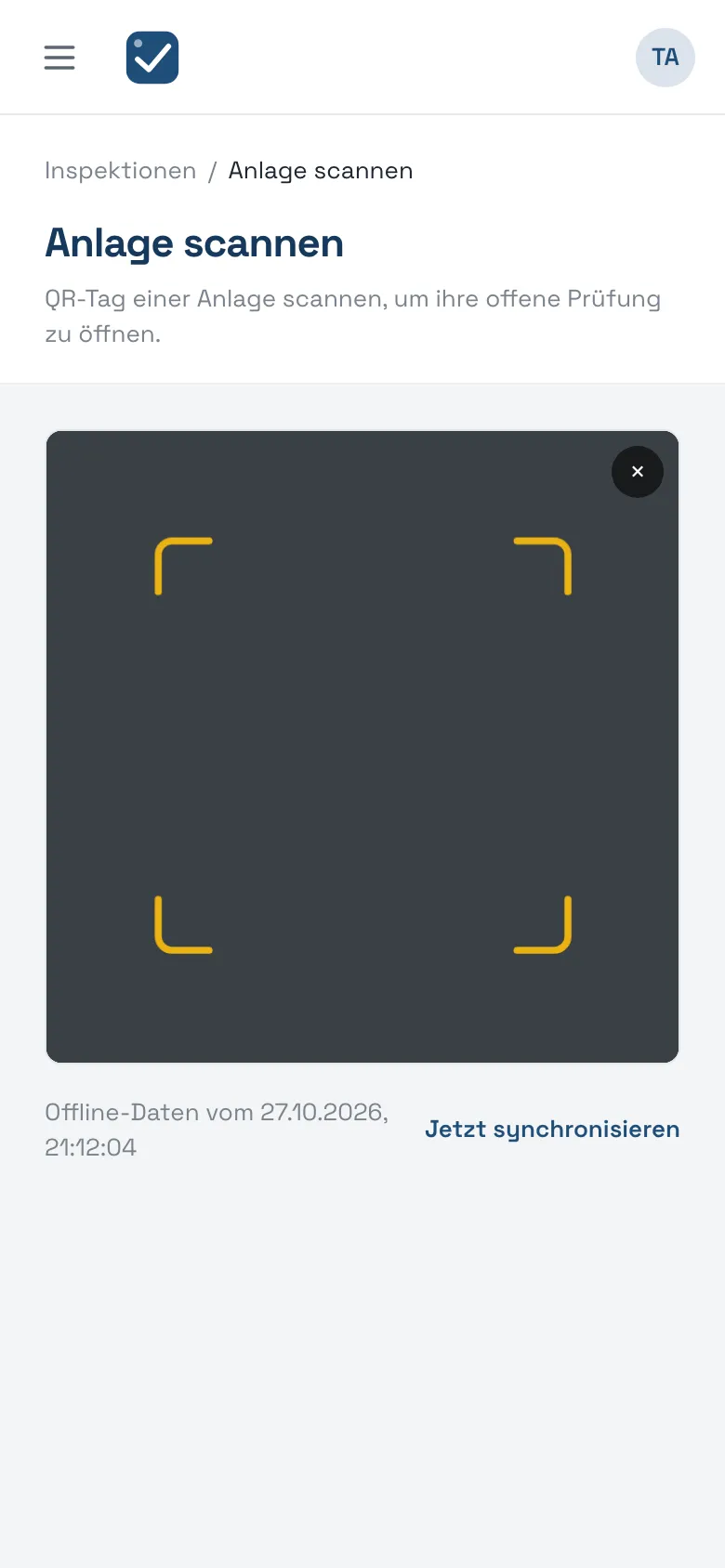
You need assigned QR Tags and open inspection appointments.
Prepare (with internet)
Section titled “Prepare (with internet)”- Choose the right organization and sign in. Prepare the device with the membership you will use to send the results. Check the organization under Settings → Account → Your organizations.
- Allow offline restart only on your own device. Under Settings → Account → Offline access on this device, enable This is my private device while connected. Wait until the setting is successfully saved. Leave it disabled on shared devices.
- Check the time window. Offline restart is allowed for at most 24 hours after a successful online access check. Installing the app does not extend that window. Check access again online before a trip; after expiry you must sign in online again.
- Sync the data. Open Inspections → Scan asset, select Sync now, and wait for Offline data from … with a current timestamp. Appointments created later are not in that snapshot yet.
- Test before leaving. Briefly disconnect and reopen the scan page. Check that the expected data is available, then reconnect. Plan longer trips so another online sign-in is possible.
On a shared device, restarting without a connection is not guaranteed. Having a stored snapshot alone does not authorize another offline sign-in.
Add the app to the home screen
Section titled “Add the app to the home screen”- Android/Chrome: menu ⋮ → Install app or Add to Home screen.
- iPhone/iPad/Safari: Share → Add to Home Screen.
This makes launching easier but replaces neither private-device consent nor the online check. Browsers and operating systems can remove local data. Do not rely on permanent storage of unsent work; transfer results promptly.
At the equipment
Section titled “At the equipment”- Open Inspections → Scan asset and scan the sticker.
- The app opens the matching open appointment.
- Under Asset results, enter Passed, Failed or Skipped for every item and add notes if needed. No item may remain Pending.
- Check the completion date and select Complete inspection.
For several assets, you can select All passed or All failed first, even offline, then change individual exceptions. This replaces all results previously selected for this appointment and preserves notes. See Recording results.
When entering through the scanner, the report file is optional. You can record the PDF report later in the office; see Inspection reports.
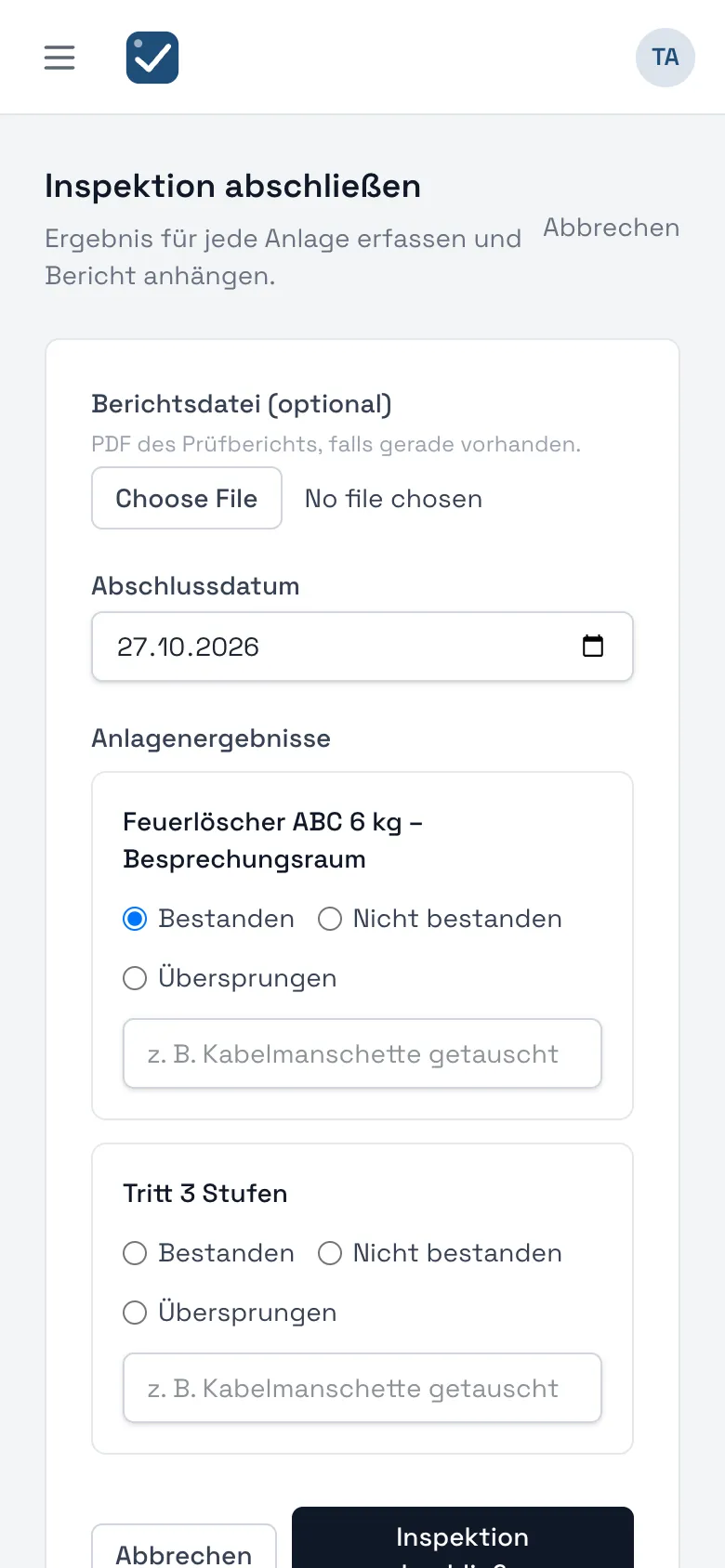
Without a connection
Section titled “Without a connection”Loading a stored appointment shows No connection – showing the offline copy from …. After completion, the app confirms that the result is saved on this device. A note such as 1 to send opens the queue overview on the scan page. A locally completed appointment is not offered for completion again on that device.
After the trip, open the app with a connection and keep it in the foreground until … to send no longer appears. It attempts sending on startup, on return to the window, after reconnection, and regularly while results wait. Do not rely on sending with the app closed, especially on an iPhone.
For Too many requests, wait for the displayed countdown and keep the queue. Check sending afterwards; the end of the wait does not confirm a transfer. See Waiting and retrying.
Sign-in or offline authorization expired
Section titled “Sign-in or offline authorization expired”Unsent results remain encrypted when you disable private-device consent, sign out or reach the offline time limit. Go online and sign in with the same membership in the same organization. Using the same email address in a different organization is not enough. The app can then resume sending the pending results.
Removed memberships, role changes and archived organizations are checked on reconnect. Missing permissions can stop transfer. If a message mentions older results, use the offered recovery in Settings → Account or on the scan page; contact support if needed.
When the server refuses a result
Section titled “When the server refuses a result”An appointment changed or completed by someone else cannot be accepted unchanged. The scan page lists these results under Not accepted by the server – check and redo. Review the current appointment and error before using Discard to remove the local result and recording it again if needed. Rejection is not a successful transfer.
Before changing devices or organizations
Section titled “Before changing devices or organizations”Review and send pending work before switching organizations, leaving or archiving an organization, or clearing browser data. Check every device separately: another PC cannot inspect your phone’s local queue. While work is pending, do not clear browser data or uninstall the app.
Limits
Section titled “Limits”- Offline use covers scanning and recording inspection results from the stored snapshot. Editing assets, planning, team management and billing require a connection.
- An appointment missing from the snapshot must first be synchronized online.
- If an asset belongs to several open appointments, choose the intended one under Inspections.
- Without an open appointment, first schedule one.
Recover input or results
Section titled “Recover input or results”For maintenance, saved drafts, failed uploads or version conflicts, see Outages and recovery. It explains when files need reselecting and how a draft differs from a pending result.