An inspection appointment covers one or more assets. Each item has its own result: ten assets might produce eight passes, one failure and one skipped item. The appointment, its results and a PDF file are separate pieces of information.
Calendar view
Section titled “Calendar view”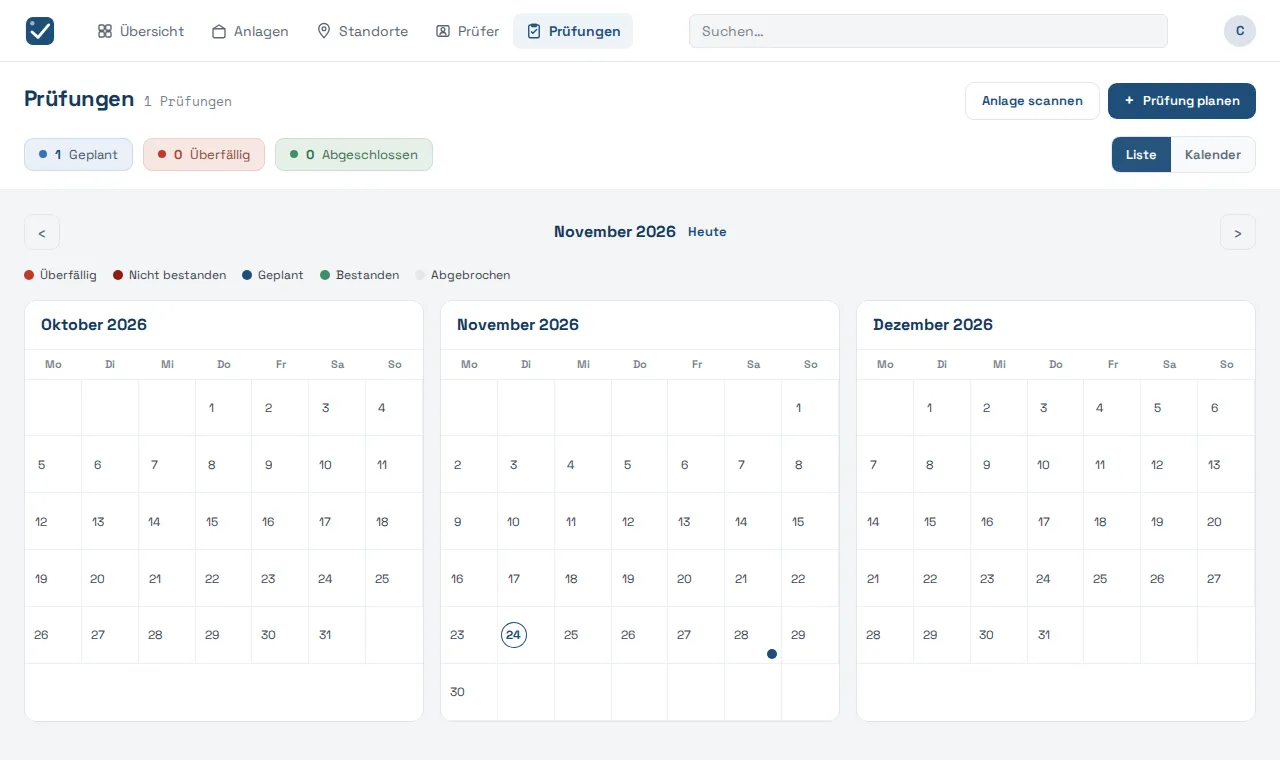
Under Inspections, switch between List and Calendar. Use status filters for planned, overdue or completed appointments. List counts refer to the loaded results; the calendar loads and counts a time window. Browse to the desired month and open a day or appointment for details. The app remembers the chosen view in this browser.
Schedule an appointment
Section titled “Schedule an appointment”- Open Inspections → Plan inspection.
- Choose a planned date and at least one asset. A title is optional; without one, the app generates it from the date and number of assets.
- Optionally add an inspector and notes. Search for further assets and check your selected items before saving.
- Save the appointment. It starts in Planned status.
Open an existing appointment to edit it while that action is offered. If a colleague changes it meanwhile, review the newly loaded values before saving again.
For a custom combined appointment, you can also select assets in the list and carry the selection into the appointment form. Review all items there before saving.
Appointment status
Section titled “Appointment status”An appointment can be Planned, In progress, Completed or Cancelled. Available actions depend on its current state and your permissions. An already completed or cancelled appointment cannot be completed again. Viewers read appointments and reports but cannot save planning or completion changes.
Recording results
Section titled “Recording results”- Open the appointment and choose Complete inspection.
- Enter the actual completion date. The planned date describes the appointment; the completion date describes the inspection that took place.
- Choose Passed, Failed or Skipped for every item and add notes if needed. No item may remain Pending.
- Attach a PDF report file for regular completion and submit the results.
For many assets, use All passed or All failed under Asset results. Either button sets the result for every asset in this appointment, including any results you already selected. Existing notes are preserved. Then adjust individual exceptions to Passed, Failed or Skipped. For example, select All passed, then change the assets that failed. Review the results before choosing Complete inspection; selecting a bulk result does not submit the completion itself.
When entering through Scan asset, the file is optional; see
On-site inspections. PDFs are limited to 20 MiB per file. An empty
file or a file merely renamed to .pdf is not a valid PDF report.
Inspection reports
Section titled “Inspection reports”A file uploaded during completion is available through the appointment’s download action.
The app’s separate report list has the path /inspection-reports; it also lets you record an
existing PDF report with file name and inspection date, then open or download it later.
A separate report and a planned appointment are different records. When bringing in older evidence, link the report to the right asset and history entry. Deleting a report does not correct inspection history.
Inspection history
Section titled “Inspection history”Review past results in the asset or the history list (/inspection-history in your app).
Appointment completion creates history entries for passed and failed items; skipped items do
not count as passed inspections.
For older inspections, use the new-entry action in the history list to select an asset, report, actual inspection date and result. This does not automatically complete a currently planned appointment. Review the asset’s due dates separately.
History entries are immutable and cannot later be edited or deleted. Contact support about an incorrect record. A PDF file alone does not replace correct assignment and the correct result.
Recurring inspections
Section titled “Recurring inspections”Every plan, including Free, calculates the next due date after a passed completion. From Plus, the app also creates automatic follow-up appointments. These can be per asset; that does not automatically mean a combined visit for every asset. On Free, schedule the follow-up yourself. See Plans & Billing.
Recover input or results
Section titled “Recover input or results”For maintenance, saved drafts, failed uploads or version conflicts, see Outages and recovery. It explains when files need reselecting and how a draft differs from a pending result.